How to unprotect a sheet in Excel for data freedom
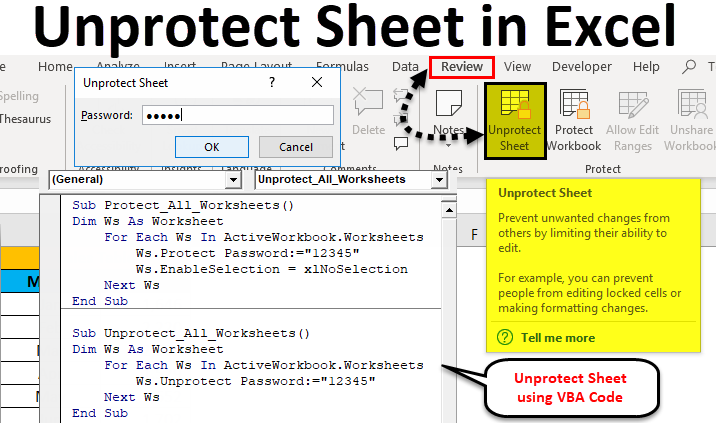
Table of Contents
- Unprotecting a Sheet without a Password
- Method 1: Using VBA Macros
- Method 2: Using Excel Formulas
- Security Risks
- Alternatives to Unprotecting a Sheet
- Using Unprotected Tabs
- Creating New Worksheets
- Revisiting Your Workbook Structure
- Seeking Alternative Solutions
- Implementing Best Practices for Protecting and Unprotecting Sheets
- Regularly Review and Update Protection Settings
- Establish a Structured Process for Protecting and Unprotecting Sensitive Data
- Maintain Accurate Records of Protection Settings
- Securing Sensitive Data with Advanced Protection Techniques
- Technique 1: Data Encoding
- Technique 2: Conditional Formatting
- Technique 3: Information Rights Management (IRM)
- Implementing Advanced Protection Techniques, How to unprotect a sheet in excel
- Final Wrap-Up
- FAQ Insights: How To Unprotect A Sheet In Excel
As how to unprotect a sheet in Excel takes center stage, this opening passage beckons readers into a world crafted with good knowledge, ensuring a reading experience that is both absorbing and distinctly original. Excel is a powerful tool for managing and analyzing data, but sometimes it becomes necessary to unprotect a sheet to make modifications or data entries.
The process of protecting a sheet in Excel is essential for maintaining data security, but it can also pose challenges when trying to unprotect a sheet for legitimate purposes. In this comprehensive guide, we will walk you through the steps to unprotect a sheet in Excel, including understanding the protection mechanism, identifying unprotected sections, and exploring alternatives to unprotecting a sheet.
Unprotecting a Sheet without a Password
When working with sensitive data in Excel, protecting sheets with passwords can be an effective way to prevent unauthorized access. However, there may be situations where you need to unprotect a sheet without knowing the password. In this section, we will explore two methods for unprotecting a sheet without a password: using Visual Basic for Applications (VBA) and Excel formulas.
Method 1: Using VBA Macros
One approach to unprotecting a sheet without a password is by using VBA macros. This method involves creating a macro that will unprotect the sheet for you. To do this, follow these steps:
- Open the Visual Basic Editor by pressing Alt + F11 or by navigating to Developer > Visual Basic in the Excel ribbon.
- Insert a new module by clicking Insert > Module in the Visual Basic Editor.
- Paste the following VBA code into the new module:
```vb
Sub UnprotectSheet()
ThisWorkbook.Worksheets("Sheet1").Unprotect
End Sub
```Replace "Sheet1" with the name of your sheet that you want to unprotect.
Method 2: Using Excel Formulas
Another way to unprotect a sheet without a password is by using Excel formulas. This method involves exploiting a vulnerability in Excel's protection mechanism that allows you to unprotect a sheet using specific formulas. However, please note that relying on Excel formulas for unprotecting sensitive data poses significant security risks.- Open the Excel worksheet that contains the protected sheet.
- Insert a new cell below the sheet you want to unprotect.
- Paste the following formula into the new cell:
```excel
=REPLACE(A1,1,1,"")
```Assuming your sheet is protected with the default password. Note that using this formula will not work if your sheet is protected with a custom password.
- Press Enter to execute the formula.
- The sheet should now be unprotected.
Security Risks
Using VBA macros or Excel formulas to unprotect a sheet without a password poses significant security risks. These methods can be exploited by malicious individuals to gain unauthorized access to sensitive data. Additionally, relying on these workarounds for unprotecting sensitive data can compromise your data's integrity and confidentiality.Alternatives to Unprotecting a Sheet
When dealing with protected sheets in Excel, there are times when unprotecting the worksheet may not be feasible or efficient. In such situations, exploring alternative approaches to modifying data within the protected sheet can be a viable solution. These alternatives not only save time but also minimize the risk of data duplication and loss.Using Unprotected Tabs
Using unprotected tabs is a common approach to modifying data within a protected sheet. If you have multiple tabs in your Excel workbook, you can create a new tab that is not locked with a password and enter your data there. This method is beneficial when you need to make frequent changes to a large dataset.- Pros: • Increased efficiency, as you can make changes to your data without having to unprotect the entire sheet.
- Cons: • Data may be scattered across multiple tabs, making it difficult to track changes and updates.
• Minimized risk of data duplication, as you can simply copy and paste data from the protected sheet to the unprotected tab.
• You may need to perform additional steps to reconcile data between tabs.
Creating New Worksheets
Creating a new worksheet is another alternative to modifying data within a protected sheet. This method is particularly useful when you need to perform complex calculations or manipulate large datasets.- Pros: • Flexibility to perform complex calculations and data manipulation without affecting the protected sheet.
- Cons: • Increases workbook size and complexity, making it harder to manage and maintain.
• Easy to manage and track changes, as you can create multiple worksheets for different tasks.
• May require additional steps to consolidate data and calculations across worksheets.
Revisiting Your Workbook Structure
In some cases, the root cause of the problem lies in the workbook structure itself. If your workbook has too many nested worksheets or has become cluttered over time, it may be worth revisiting your design and reorganizing your data to make it more manageable.- Pros: • Reduced complexity and improved organization, making it easier to modify data and perform tasks.
- Cons: • Requires significant time and effort to reorganize and redesign your workbook.
• Better data management and tracking, as you can create clear and logical relationships between worksheets.
• May involve significant changes to your data and calculations, which can be time-consuming and error-prone.
Seeking Alternative Solutions
In some situations, there may be alternative solutions available that address the root cause of the issue, rather than merely circumventing it.- Pros: • Can provide a more permanent and efficient solution to your problem.
- Cons: • Requires significant research and analysis to identify alternative solutions.
• May involve no or minimal data duplication or manipulation.
• May involve learning new skills or techniques to implement these solutions.
Implementing Best Practices for Protecting and Unprotecting Sheets
Protecting sensitive data in Excel is crucial to prevent unauthorized access, modification, or deletion of critical information. Sensitive data may include financial information, personal identifiable information (PII), or confidential business data. When protecting sensitive data, it's essential to establish robust security measures to ensure that data remains secure even in case of unexpected user actions or malicious attacks.To establish a secure environment for sensitive data, consider implementing password protection using strong passwords, limiting user access to sensitive data, and configuring Excel settings to prevent unintended changes.
Regularly Review and Update Protection Settings
Regularly reviewing and updating protection settings for critical data is vital to maintain an up-to-date security stance. This involves re-evaluating sensitive data, identifying areas of high risk, and implementing additional security measures to mitigate those risks.To identify areas of high risk, assess the criticality of data, the potential impact of data breaches, and the likelihood of unauthorized access. Based on this assessment, update protection settings accordingly. This may involve adding or updating passwords, modifying user access, or implementing additional security measures such as encryption or data validation.
Establish a Structured Process for Protecting and Unprotecting Sensitive Data
To maintain consistency and efficiency in protecting and unprotecting sensitive data, establish a structured process that Artikels the steps to be taken, the roles and responsibilities of users, and the procedures for handling exceptions or incidents.This process should cover key areas such as:
* Identifying sensitive data and determining the level of protection required
By following a structured process, you can ensure that data is protected consistently and that users understand their roles and responsibilities in maintaining data security.
Maintain Accurate Records of Protection Settings
Maintaining accurate records of protection settings is essential to ensure that data remains secure and that users have access to the necessary information to perform their tasks.To maintain accurate records, consider implementing a record-keeping system that captures key information such as:
* Sheet names and passwords
This will help you track changes, identify areas of high risk, and respond promptly to exceptions or incidents related to data protection.
Securing Sensitive Data with Advanced Protection Techniques
In Excel, protecting sensitive data is crucial for maintaining confidentiality and integrity. With advanced protection techniques, you can safeguard your data against unauthorized access, modifications, and theft. These techniques are particularly essential for high-security data, such as financial information, personal identifiable information, or intellectual property. In this section, we will explore advanced protection techniques for securing sensitive data in Excel.Technique 1: Data Encoding
Data encoding is a technique that transforms sensitive data into unreadable characters, making it difficult for unauthorized individuals to access or understand the data. Excel provides various encoding functions, such as the ENCODE function and the BASE64ENCODE function. These functions can be used to encode sensitive data, such as password, financial data, or any other confidential information.Encode the sensitive data using the ENCODE function: =ENCODE("SensitiveData", "Password", "Base64")
Technique 2: Conditional Formatting
Conditional formatting is a technique that highlights sensitive data based on specific conditions, alerting authorized users to potential security risks. Excel provides various conditional formatting rules, such as highlighting cells based on specific values, formatting cells based on formulas, or alerting users to potential security risks.- Highlight cells containing sensitive data with a warning message:
=IF(CELLCONTAINS(Data,"SensitiveData"),"Warning") - Format cells based on formulas:
=IF( Formula >Threshold , "Warning")
Technique 3: Information Rights Management (IRM)
IRM is an advanced protection technique that restricts access to sensitive data based on user permissions. Excel provides IRM capabilities through the Excel IRM add-in, which allows you to protect files with digital rights management. IRM ensures that only authorized users can access and modify sensitive data, while unauthorized users are blocked from accessing or modifying the file.IRM add-in can be downloaded from Microsoft official website and installed in Excel.
Implementing Advanced Protection Techniques, How to unprotect a sheet in excel
When implementing advanced protection techniques, consider the organization's security policies and guidelines. Ensure that the protection techniques align with the organization's data security standards and best practices. Also, provide training and documentation to authorized users on the use and maintenance of advanced protection techniques.Final Wrap-Up
After following the steps Artikeld in this guide, you should be able to unprotect a sheet in Excel with ease. Remember to always follow best practices for protecting and unprotecting sensitive data, and consider implementing alternative approaches to modifying data within a protected sheet. By doing so, you can ensure the security and integrity of your data while maintaining flexibility and efficiency in your work.
FAQ Insights: How To Unprotect A Sheet In Excel
Q: Can I unprotect a sheet in Excel if I forgot the password?A: Unfortunately, if you forgot the password, you may not be able to unprotect the sheet. However, you can try using Visual Basic for Applications (VBA) or Excel formulas to unprotect the sheet. Alternatively, you can contact the original creator of the sheet for assistance.
Q: Is it safe to rely on VBA or Excel formulas to unprotect a sheet?A: While VBA and Excel formulas can be useful for unprotecting a sheet, they should not be relied upon for sensitive or high-security data. These approaches can compromise the security of your data, and it's recommended to use them only as a last resort.
Q: Can I unprotect a sheet in Excel without losing my data?A: Yes, when unprotecting a sheet in Excel, you should not lose your data. However, if you are using a protected sheet with formulas that rely on protected cells, you may need to adjust the formulas or use alternative approaches to accommodate the unprotected cells.
Q: Are there any alternatives to unprotecting a sheet in Excel?A: Yes, there are alternative approaches to unprotecting a sheet in Excel, such as using unprotected tabs or creating new worksheets. These approaches can help maintain data integrity and security while allowing for data modification.
Leave a Comment
Comments are moderated before appearing. The data you submit is processed according to the Privacy Policy of guessthescore.